
What it does
- User and department provisioning
- Single sign-on for your people
Setup guide
Suppleo is a Device-as-a-Service platform for managing company devices and running your employee shop. The Okta integration has two parts, and this guide covers them separately: single sign-on lets people sign in to Suppleo with Okta, and SCIM provisioning creates, updates and deactivates their Suppleo accounts from Okta. Setting up both? Follow the SSO section up to and including Enable Universal Logout, then the SCIM section, and assign people last.
Single sign-on (SSO) configuration
Sign-in uses OpenID Connect. Admins sign in to Suppleo App at https://app.suppleo.io, and employees sign in to their company shop.
Prerequisites
You need:
- Admin rights in the Okta Admin Console.
- An admin account in Suppleo App at https://app.suppleo.io.
- Your Okta org URL, for example https://acme.okta.com.
- A Suppleo account for everyone who will sign in, with the same email address as their Okta profile (primary email). The account can come from SCIM provisioning or be created in Suppleo App.
Suppleo doesn't create accounts at sign-in, so the account has to exist first.
Each Okta org connects to one Suppleo company. If you're a partner managing several companies in Suppleo, connect each company separately.
Supported features
- SP-initiated SSO, from the Suppleo login page.
- IdP-initiated SSO, from the Suppleo tile in Okta.
- Universal Logout (turn it on in Enable Universal Logout).
Not supported: SAML (Suppleo uses OpenID Connect) and just-in-time account creation.
How Suppleo matches people to accounts
Suppleo looks for the account that holds the person's Okta user ID: the sub claim, scoped to your Okta org. SCIM provisioning saves the Okta user ID on every account it creates.
If no account has it yet, Suppleo looks up the person's email address instead. It only searches the Suppleo company you connected. When it finds the account, it doesn't sign the person in on the address alone: it sends a 6-digit code to the account's email address and asks for it on the sign-in page, which shows the Okta login the code will connect. The code is valid for 10 minutes and only works in the browser that just signed in through Okta. When the person enters it, Suppleo saves the Okta user ID on the account, so the code is only asked for once and the person can still sign in if their email address changes later.
From then on the account belongs to that one Okta user, for as long as the company stays connected to that Okta org. If another user in the same org signs in with the same address, Suppleo refuses the sign-in. If you move to a new Okta org, each account is linked again the first time the person signs in.
The code is what proves that the person owns the mailbox. Suppleo doesn't rely on Okta's email_verified claim for this.
Suppleo uses the sub and email claims, plus the claims that validate the token (issuer, audience, nonce and expiry). It also reads preferred_username, only to show the person which Okta login a code is about to connect. It uses nothing else.
Add the Suppleo app from the Okta Integration Network
- In the Okta Admin Console, go to Applications → Applications and select Browse App Catalog.
- Search for Suppleo, then select Add Integration.
- Keep the application label Suppleo and select Done.
The app opens on its General tab with the OpenID Connect settings already filled in.
Assign the app to yourself
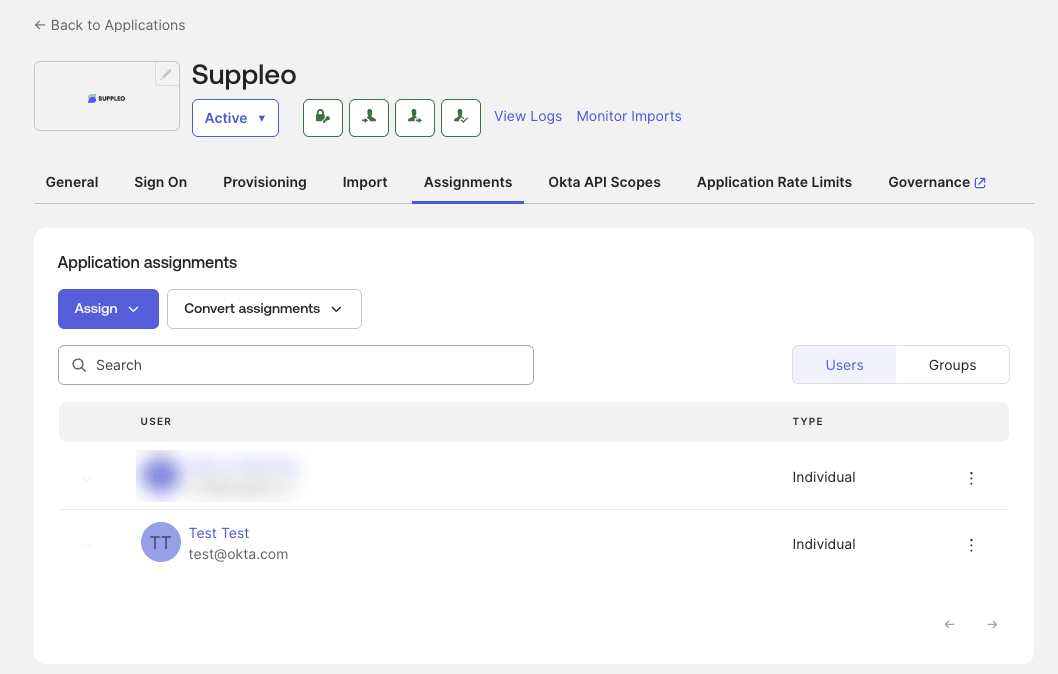
On the Assignments tab, assign the app to yourself.
In the next step you approve the connection by signing in through Okta, and Okta only lets you in if the app is assigned to you.
Connect Suppleo to your Okta org
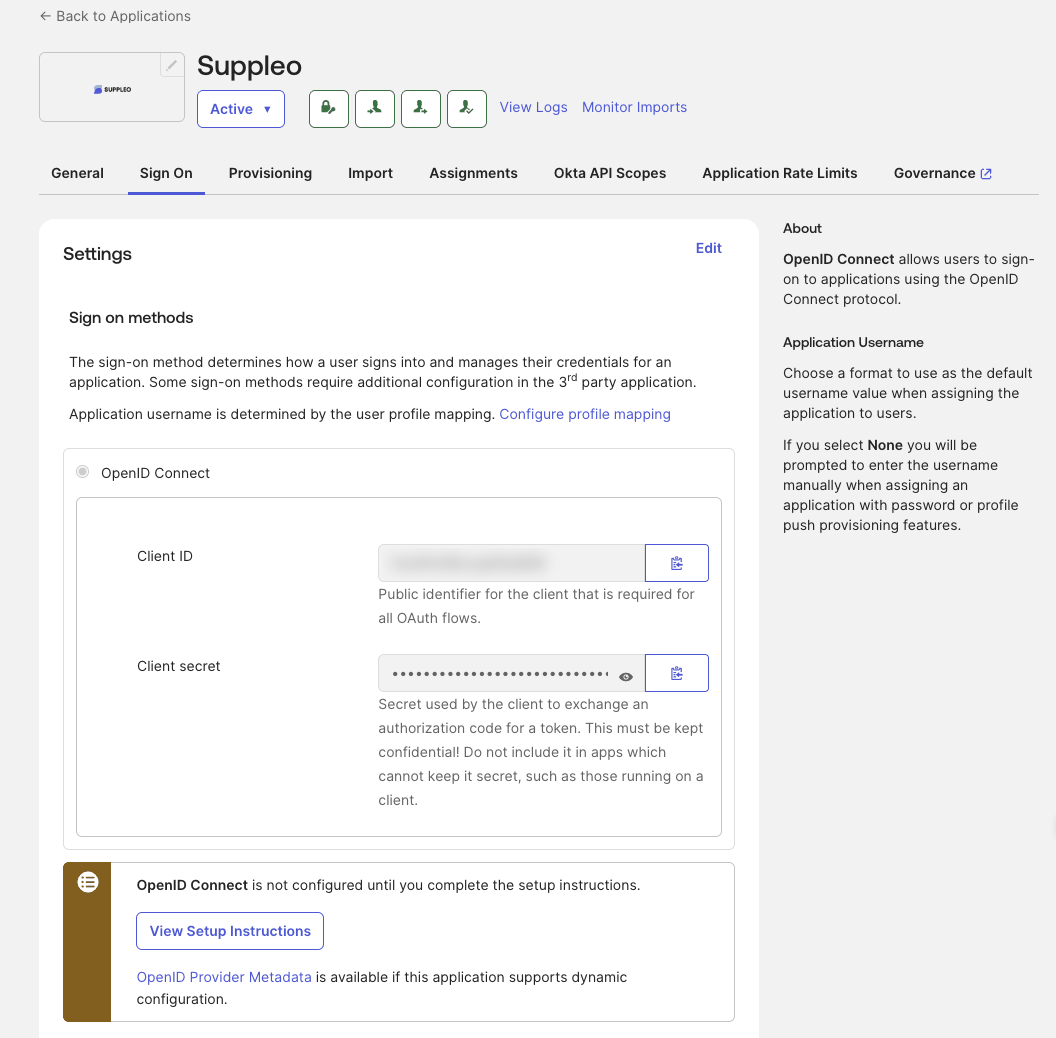
- In Okta, open the Sign On tab and copy the Client ID and the Client secret.
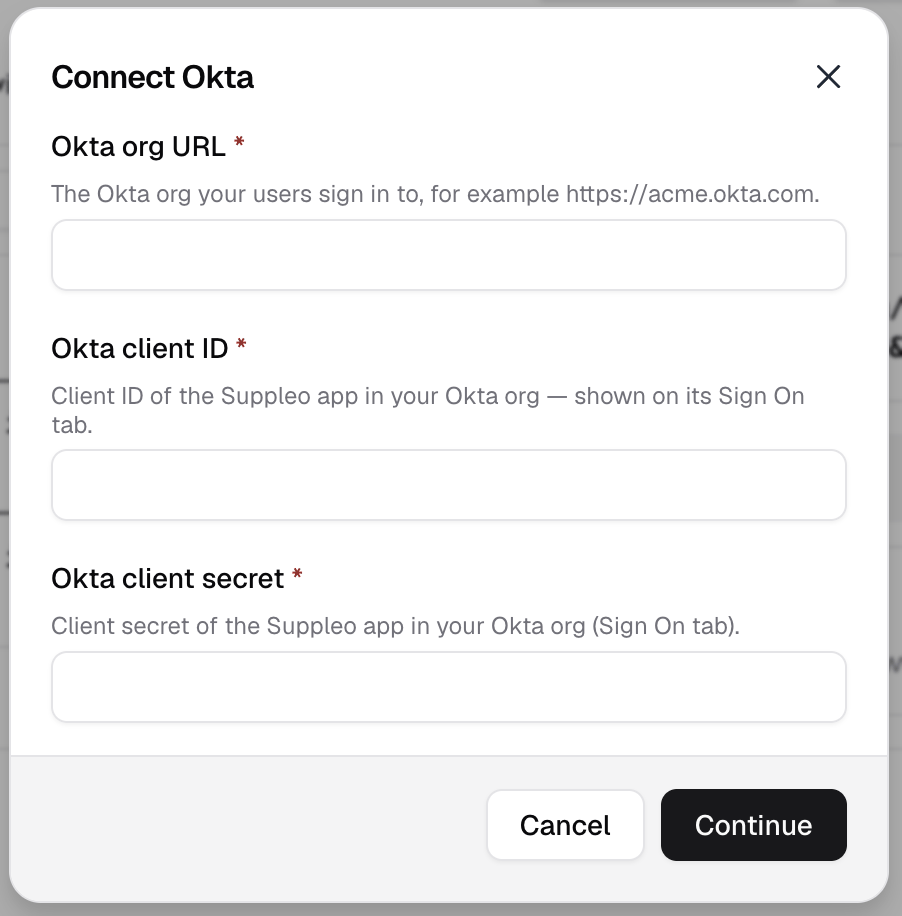
- Sign in to Suppleo App at https://app.suppleo.io, go to Settings → Apps, select Okta, then Connect.
- Enter your Okta org URL (for example https://acme.okta.com), paste the Client ID into Okta client ID and the Client secret into Okta client secret, and select Continue.
- Approve the request when Okta asks.
Suppleo stores the client secret encrypted and never shows it again.
Changing the client secret
If you rotate the secret in Okta, go to Settings → Apps in Suppleo App, select Okta, then Manage → Edit connection. Paste the new secret and select Continue. Provisioning keeps running while you do this.
Don't disconnect to change the secret. Disconnecting stops provisioning and revokes every token issued to your Okta org.
Enable Universal Logout
- In Okta, open the Sign On tab of the Suppleo app.
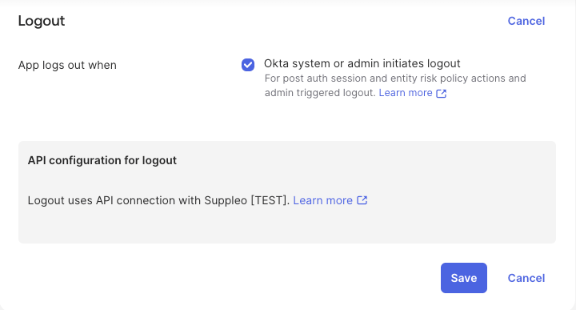
- In the Logout section, select Edit.
- Select Okta system or admin initiates logout and select Save.
Universal Logout is off by default. Once it's on, Okta calls Suppleo's Global Token Revocation endpoint whenever it ends someone's sessions, for example through an Identity Threat Protection policy or when an admin clears their sessions. Suppleo then ends all of the person's Suppleo sessions. There's nothing to configure in Suppleo.
Assign the people who should sign in
On the Assignments tab, assign the people or groups who should be able to sign in to Suppleo.
Using SCIM provisioning as well? Skip this step and assign people at the end of the SCIM section, once provisioning is on. That assignment is what creates their Suppleo accounts, and nobody can sign in before their account exists.
Anyone who isn't assigned gets an Okta error when they try to sign in.
SP-initiated sign-in
- Go to https://app.suppleo.io (admins) or your company's shop address (employees).
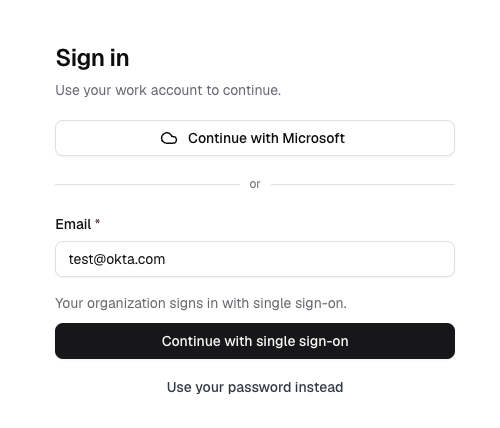
- Enter your work email address and select Continue with single sign-on.
- Sign in with Okta. Okta returns you to Suppleo, signed in.
The login page offers Continue with single sign-on to every active account in the connected Suppleo company, including imported accounts and accounts created by hand in Suppleo App. Accounts created by SCIM hold the person's Okta user ID from the start. Any other account needs the same email address in Okta and in Suppleo. The first time the person signs in through Okta, Suppleo sends a 6-digit code to that address and asks for it before signing them in; see How Suppleo matches people to accounts under Supported features.
The login page goes by the account, not by the email domain. An address with no active account in the connected company is asked for a password as usual.
Connecting Okta doesn't turn off password sign-in. People who already have a Suppleo password can keep using it, so you don't have to move everyone over on the same day. Accounts created by SCIM have no Suppleo password and sign in with Okta.
IdP-initiated sign-in
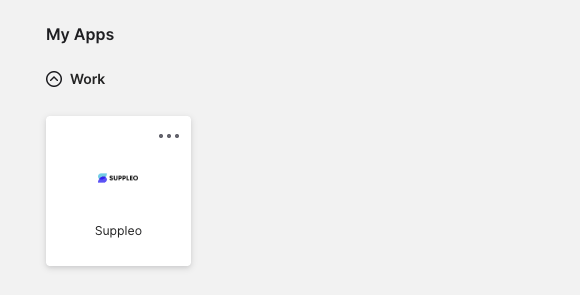
When the app is assigned to someone, a Suppleo tile appears on their Okta End-User Dashboard. Selecting it signs them straight in to Suppleo.
People with access to Suppleo App land in Suppleo App, also when they can order in the shop. Everyone else lands in their company shop.
The tile works for every active account in the connected Suppleo company, including accounts created by hand in Suppleo App. An account that doesn't hold the person's Okta user ID yet needs the same email address in Okta and in Suppleo, and the person enters a 6-digit code from that mailbox the first time. Accounts in other Suppleo companies are never used. See How Suppleo matches people to accounts under Supported features.
Known issues and limitations
- Suppleo doesn't create accounts at sign-in. The account has to exist first.
- An account that doesn't hold the person's Okta user ID needs a mailbox: the first sign-in asks for a code sent to its email address. An account whose address can't receive mail has to be provisioned with SCIM or imported.
- The login page offers single sign-on only to active accounts in the connected Suppleo company. An email address on your domain that has no Suppleo account isn't offered it.
- An account linked to one Okta user can't be taken over by another user in the same Okta org. That sign-in is refused.
- One Okta org connects to one Suppleo company.
- SAML isn't supported.
- The client secret can't be read back from Suppleo. To change it, paste a new one; see Connect Suppleo to your Okta org.
Troubleshooting
The approval fails when you connect.
You aren't assigned to the Suppleo app in Okta. Assign it to yourself and try again.
Okta signs the person in, and Suppleo asks for a code that never arrives.
The connected Suppleo company has no active account for them: none with their Okta user ID and none with their email address. Suppleo shows the same page either way, so it doesn't reveal which addresses have an account. Provision the person with SCIM or create the account in Suppleo App with the same email address as in Okta. Also check the spam folder, and that the address is a mailbox the person can read.
The login page doesn't offer single sign-on.
The email address has no active account in the connected Suppleo company, or it also has an account in another Suppleo company that signs in through an identity provider. In the second case, sign in from the Suppleo tile in Okta. If the tile fails too, check that Okta is connected under Settings → Apps in Suppleo App.
Suppleo refuses the sign-in although the account and email address are right.
The account is already linked to a different user in your Okta org, often because two Okta users share an email address. Fix the address in Okta and let provisioning update the account, or contact hello@suppleo.io.
Okta refuses the sign-in.
The person isn't assigned to the Suppleo app in Okta.
Sign-in stops working after you rotate the secret.
In Suppleo App, go to Settings → Apps, select Okta, then Manage → Edit connection. Paste the new secret and select Continue. Don't disconnect; that stops provisioning.
Still stuck? Contact hello@suppleo.io.
SCIM provisioning configuration
SCIM provisioning creates Suppleo accounts from Okta, keeps them up to date, and deactivates them when people leave or lose their assignment. Suppleo uses SCIM 2.0 with OAuth 2.0, so there's no API token to copy.
Prerequisites
You need:
- The Suppleo app connected to your Okta org. Follow the SSO section up to and including Enable Universal Logout first; provisioning uses the same app.
- Admin rights on the Suppleo app in Okta.
- An admin account in the Suppleo company you're provisioning into. You use it to approve the connection.
- Okta Identity Governance, if you want Okta to manage roles and portal access in Suppleo. Turn on entitlement management before provisioning; see Enable entitlement management below. Everything else works without it.
Supported features
- Create Users
- Update User Attributes
- Deactivate Users
- Reactivate Users
- Import Users, which brings existing Suppleo accounts into Okta so they can be matched to Okta users
- Entitlement Management (with Okta Identity Governance): roles and portal access, including importing what people already have
Not supported:
- Push Groups and Import Groups. Access in Suppleo comes from entitlements (roles and portal access), not through groups. A pushed group is accepted but does nothing, and there are no groups to import.
- Sync Password. Suppleo never receives passwords from Okta.
Enable entitlement management
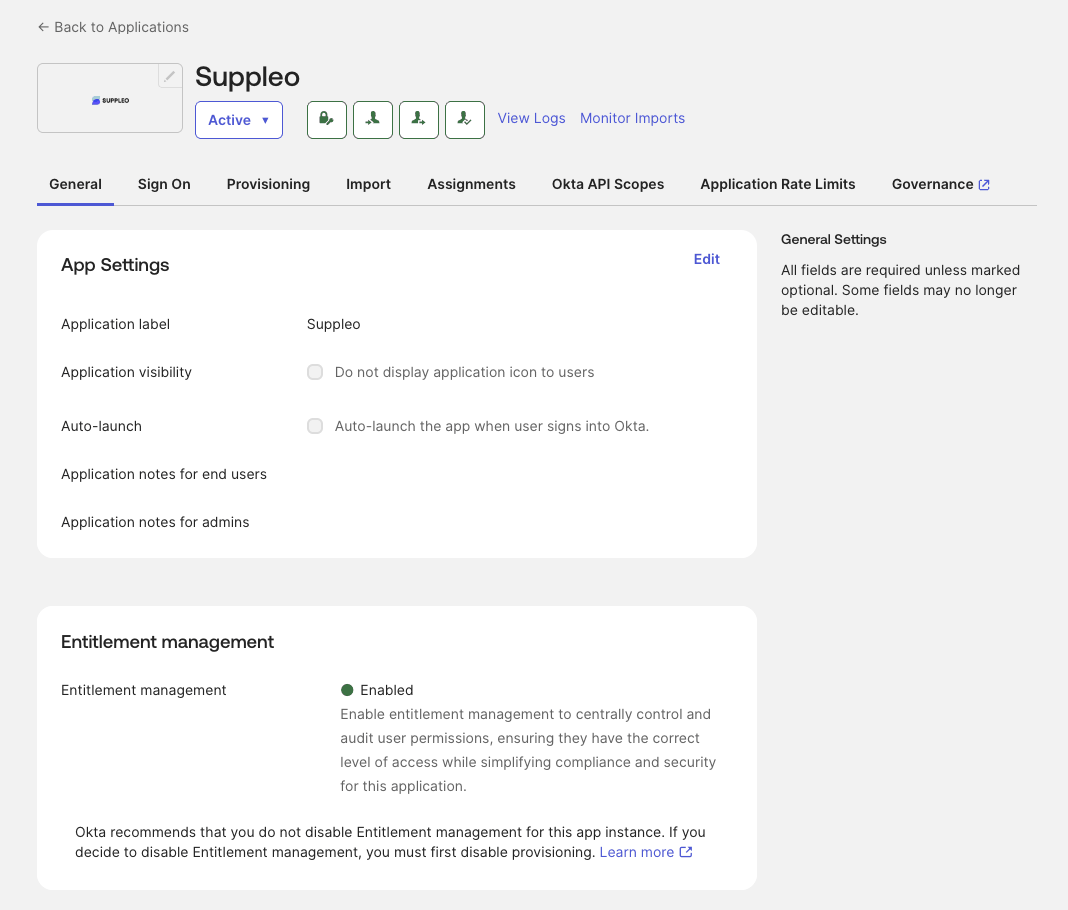
On the General tab of the Suppleo app in Okta, turn on Entitlement management.
Do this before you turn on provisioning. Okta refuses the change once provisioning is active.
If you don't have Okta Identity Governance, skip this step. You then manage roles and portal access in Suppleo App.
Turn on provisioning
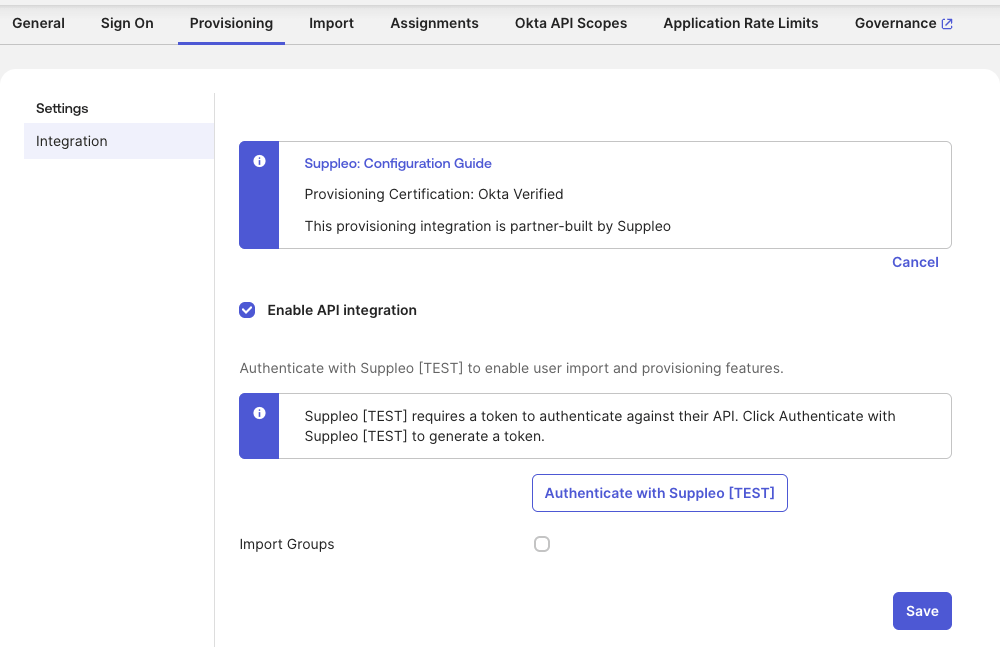
- Open the Provisioning tab and select Configure API Integration.
- Select Enable API integration and select Authenticate with Suppleo.
- Sign in as an admin of your Suppleo company and approve the request.
- Clear Import Groups, since Suppleo has no groups to import. Confirm when Okta asks, then select Save.
Okta obtains its token through OAuth 2.0 when you authenticate and renews it by itself. There's nothing to copy or paste.
Enable the provisioning features
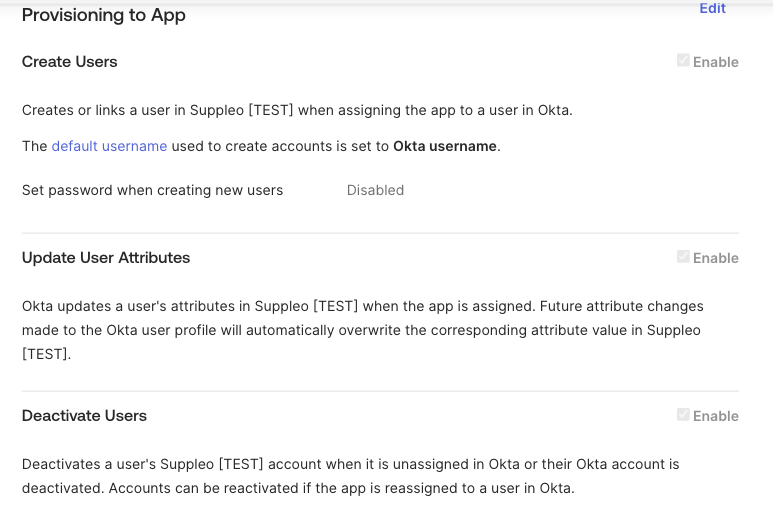
- On the Provisioning tab, open To App and select Edit.
- Turn on Create Users, Update User Attributes and Deactivate Users.
- Keep Set password when creating new users disabled. Suppleo doesn't accept passwords from Okta.
- Select Save.
Reactivation needs no setting of its own. When you reactivate or reassign someone in Okta, their Suppleo account is reactivated.
Import existing Suppleo accounts (optional)
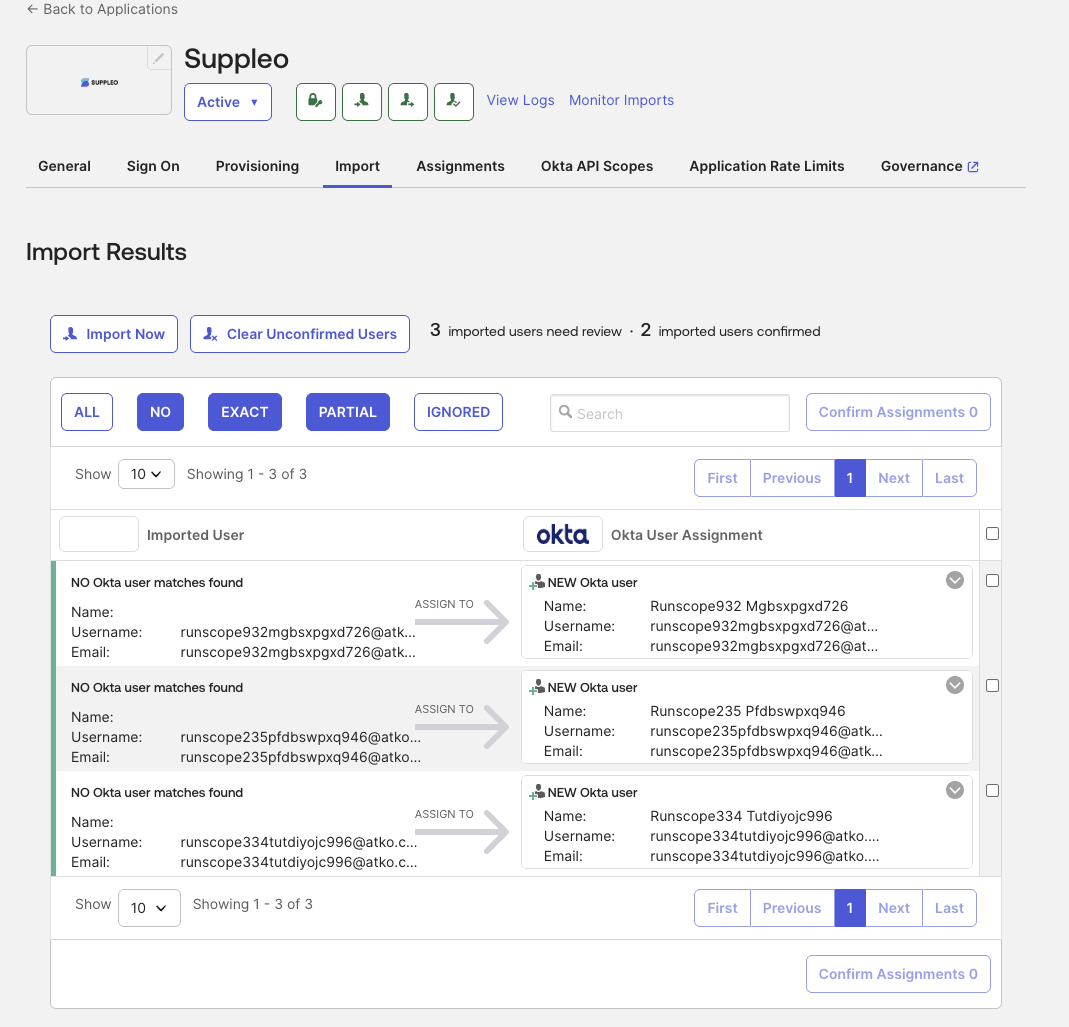
If people had Suppleo accounts before you connected Okta, import them so Okta takes them over instead of creating duplicates. This includes your own admin account.
- On the Provisioning tab, open To Okta and select Edit under User Creation & Matching.
- Match imported users on email address and select Save.
- Open the Import tab and select Import Now.
- Check the matches and select Confirm Assignments.
Okta now manages the confirmed accounts. An account with no matching Okta user is offered as a new Okta user. Leave it unselected unless you want Okta to create that user.
With entitlement management on, the import also brings in each person's current roles and portal access.
Importing doesn't save the person's Okta user ID on the account yet. It's saved the first time the person signs in through Okta, or when Okta pushes its first update for the account, whichever comes first. The person can sign in through Okta in the meantime, from the login page or from the Suppleo tile.
Add and map the department attribute
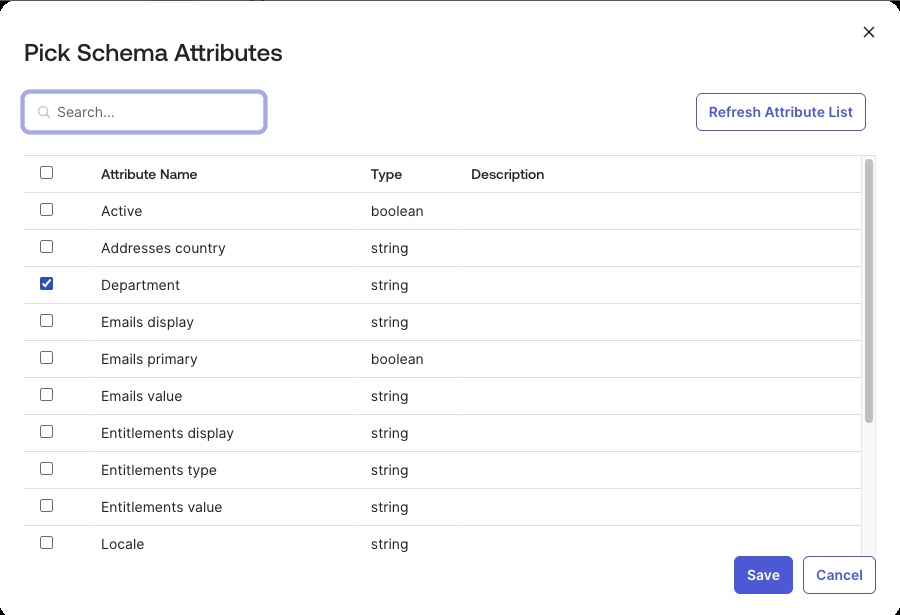
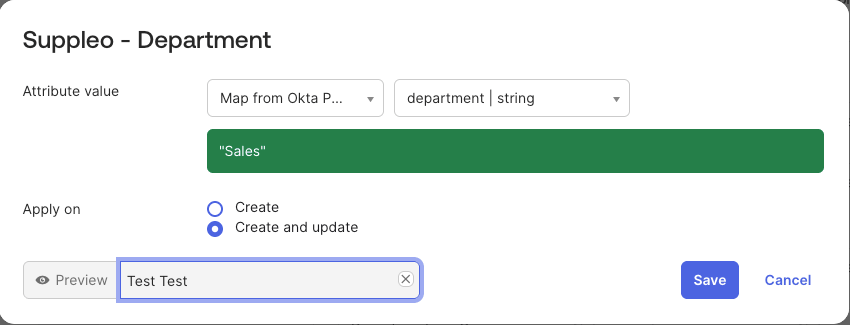
Suppleo uses the department attribute to place the person in the matching department in Suppleo. Okta doesn't add optional attributes to the app profile automatically, so add it yourself.
- On the Provisioning tab, open To App and select Go to Profile Editor.
- Select Add Attribute, select department and select Save.
- Back on To App, find department under Suppleo Attribute Mappings and select the pencil icon.
- Set it to user.department, choose Apply on create and update, and select Save.
Add locale the same way if you want Okta to set the person's language in Suppleo.
Grant roles and portal access
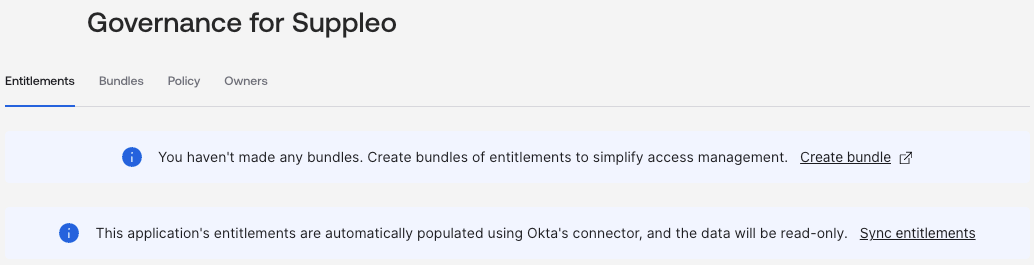
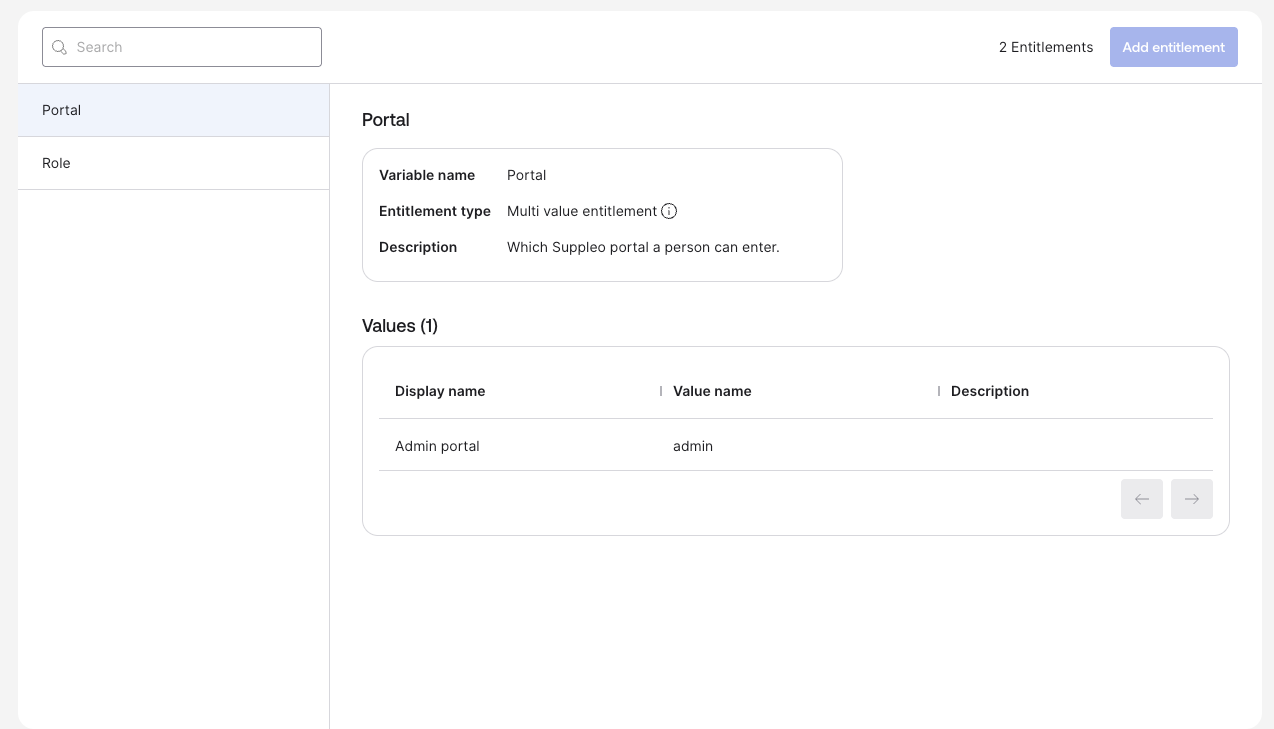
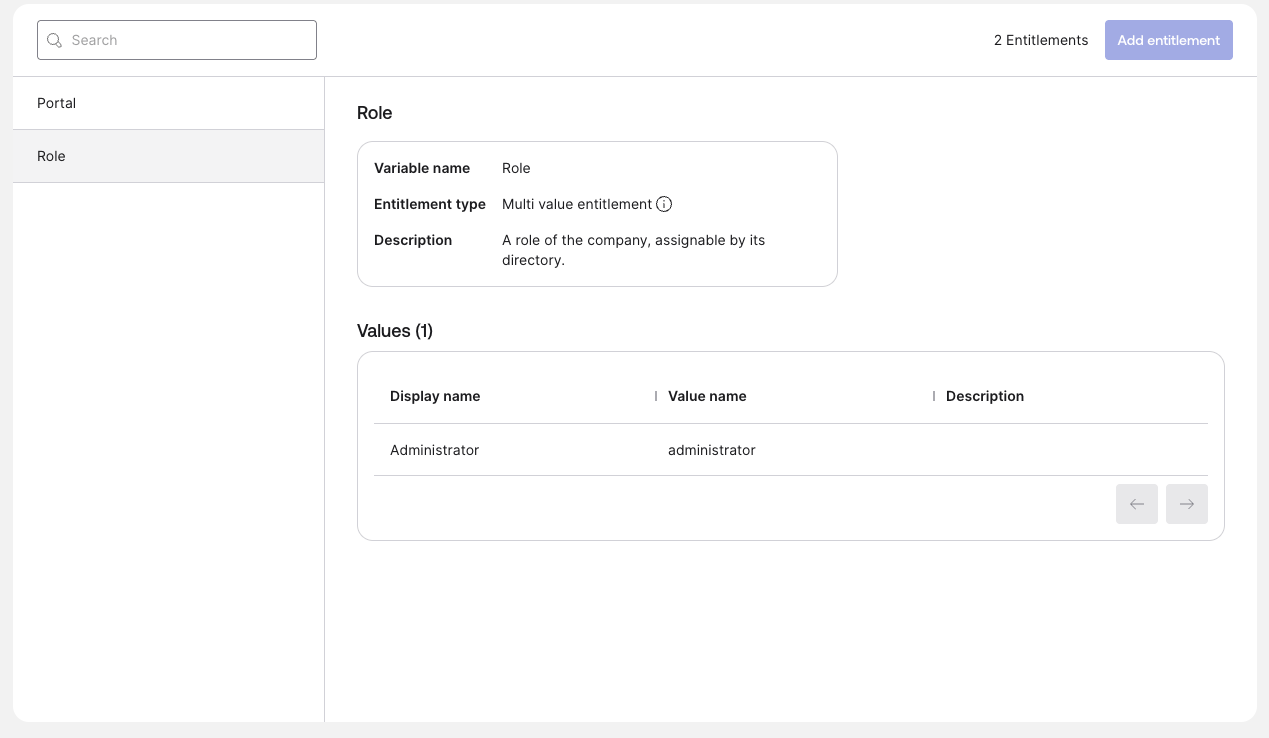
With Okta Identity Governance, the Governance tab of the Suppleo app lists two entitlements:
- Role: one value for each role in your Suppleo company
- Portal: "Admin portal"
Grant them on a person's assignment, or to a group of people with an Okta entitlement policy.
You don't grant shop access here. Every provisioned person has it until they're deactivated.
When you add a role in Suppleo, select Sync entitlements on the Governance tab so it shows up in Okta.
Assign people
On the Assignments tab, assign the people or groups who should have a Suppleo account. Assigning someone is what creates their account, and Okta keeps it up to date from then on.
You can use groups to assign people in Okta, but the groups themselves aren't sent to Suppleo and grant nothing there.
What happens in Suppleo
This is what a change in Okta does in Suppleo.
Deactivating someone in Okta, or removing their assignment to the Suppleo app, signs them out of Suppleo and deactivates their Suppleo account. Reactivating or reassigning them in Okta reactivates it.
The department attribute alone decides which department the person is in, never a group. If it's empty, they're placed in a fallback department until it's filled in.
Access follows the person's entitlements: a Role value for each role in your Suppleo company, plus the Portal value "Admin portal" (access to Suppleo App). Every update carries the person's full set, so anything it no longer grants is removed in Suppleo. Shop access isn't managed from Okta: every provisioned person has it until they're deactivated. Groups aren't used by this integration. A pushed group is accepted without error and changes nothing.
Attribute mappings
You find these on the Provisioning tab under To App. Each line shows the Suppleo attribute and the Okta value it gets.
- Username (userName) ← user.login. Required, mapped by default.
- Email (emails, the work value) ← user.email. Required, mapped by default.
- Given name (name.givenName) ← user.firstName. Required, mapped by default.
- Family name (name.familyName) ← user.lastName. Required, mapped by default.
- Department (urn:ietf:params:scim:schemas:extension:enterprise:2.0:User:department) ← user.department. Optional, not mapped by default; see Add and map the department attribute.
- Locale (locale) ← user.locale. Optional, not mapped by default; add it the same way.
- External ID (externalId): set by Okta to the Okta user ID. Nothing to map.
Roles and portal access aren't profile attributes. They're entitlements and need Okta Identity Governance.
Known issues and limitations
- Groups aren't pushed or imported. Access comes from entitlements, not groups.
- Entitlement management has to be turned on before provisioning. Okta refuses the change while provisioning is on.
- Sync Password isn't supported.
Troubleshooting
Authenticate with Suppleo fails.
Either the Okta app isn't connected in Suppleo App yet, or the account you approved with isn't an admin of that Suppleo company. Finish Connect Suppleo to your Okta org in the SSO section and approve with an admin account.
Someone has no department in Suppleo.
user.department is unmapped or empty in Okta. Map it and push a profile update.
A role is missing from the Governance tab.
Select Sync entitlements. New Suppleo roles don't show up in Okta until you do.
Okta reports a 409 (uniqueness) error when it creates someone.
The email address already belongs to a Suppleo account Okta doesn't manage. It's either in another company managed by the same partner, or it was created in your company after Okta's last import. If it's in your company, retry the task under Dashboard → Tasks in Okta, or import the account and confirm the match. If it's in another company, change the address in Okta or contact hello@suppleo.io.
Okta reports a 409 (uniqueness) error when it changes someone's email address.
Another account in your Suppleo company already has the new address. Change the address on one of them, then retry the task under Dashboard → Tasks in Okta.
Okta reports 400 invalidValue on an entitlement.
The role or portal value no longer exists in Suppleo. Select Sync entitlements and grant the current value.
For anything else, contact hello@suppleo.io.
Get this app
You install it in Suppleo, under Settings → Apps.
Not on Suppleo yet? Book a demo.